 XCIPTV Player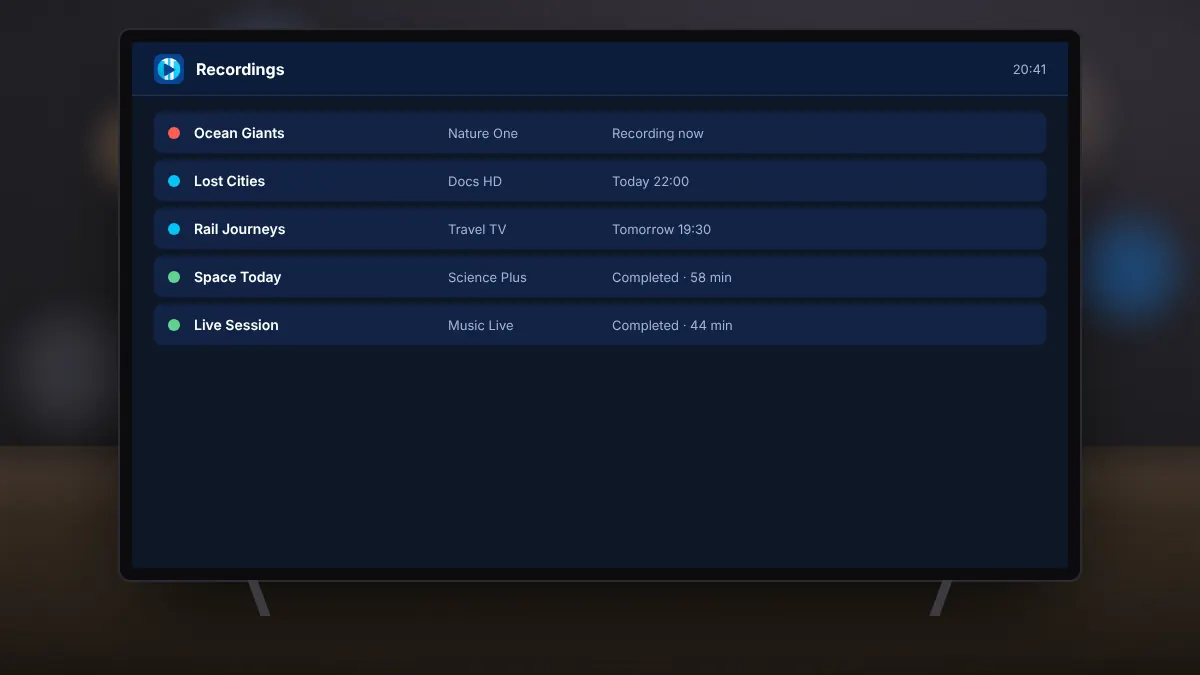
XCIPTV Player includes a recording feature that saves live programmes to your device's storage or a connected USB drive. It is useful for shows that clash or air at inconvenient times.
Before you record
- Check that your service permits recording. Some plans or channels do not.
- Make sure there is enough free space. An hour of HD video can need 2 to 4 GB.
- On Android TV boxes with little internal storage, connect a USB drive.
Recording from the guide
- Open the TV guide and select a future programme.
- Choose the record option.
- The recording appears in the scheduled list and starts automatically.
Recording what you are watching
While watching a live channel, open the player options and start a recording. Stop it from the same menu or let it run until the programme ends.
Choosing where recordings are saved
In the settings, choose internal storage or an external drive as the recording location. Grant storage permission when asked so the app can write files.
When recordings fail
- The device went to sleep: disable automatic sleep while a recording is scheduled.
- Storage is full: delete old recordings or use a larger drive.
- The stream dropped: check your connection, as a recording cannot continue without the live stream.
Recordings are for personal viewing. Do not share or upload recorded programmes.